BTRACCIA - INFO
|
|
BTracia.com is a website to study and research new methods for parcel tracking, the mission of BTraccia.com is to make parcel tracking available to anyone in a simple way.
BTraccia App is designed to integrate with other systems (such as management, CRM, ERP, etc.) the BTraccia.com site is used for testing. For information on integration with your management system write to info@btraccia.com.
In this study, only the identification of the package is dealt with with the univocal assignment of the pack code and the registration of the position of the package through a special App, the possibility for the App to combine over the position also a photo of the package that certifies its integrity. When registering the position of the package, it is also possible to assign a control signature.
In the study, the package is treated as a unique entity, the concept is that the package begins to live when the pack code is applied and ceases to live when the last registration is made (delivery to the recipient).
|
|
Practical example:
The shipping office prepares a package to be sent, on BTraccia.com it generates the pack code and prints a label in QR Code format to be glued on the package, in this phase it makes the first registration via the BTraccia App where the pack code is assigned to the first position, accompanied by photo and control signature if desired. The recipient of the package is notified of the pack code which can be searched on the BTraccia.com website to follow the progress of the shipment. When the package is delivered to the transporter, a new registration is made with the BTraccia of position change app, at each position change (by position we mean new warehouse from shipping office to transporter to another transporter, delivery depot, during delivery, received by the recipient).
BTraccia.com does not enter into the merits of the contents of the package, does not record data of any kind regarding the contents of the package, its origin or destination but limits itself to providing a unique and completely anonymous pack code to be applied as a QR Code label on the package.
|
|
Data that is recorded on BTraccia.com using the BTraccia App:
- Pack Code - unique code of twenty alphanumeric characters generated automatically by BTraccia.com
- Position - by location we mean the warehouse, the carrier, etc. The position is recorded by the BTraccia App via a freely generated QR Code on BTraccia.com the position cannot exceed fifty characters.
- Date and time of the registration of the movement or of the preparation of the package.
- With the record photo option, you can also assign an image of the package to the movement.
- With the record signature option, you can also assign a description or signature to the movement that must be drawn at the moment on the appropriate drawing area on the Btraccia App.
The tracking data will be deleted three months after the last movement.
|
|
BTraccia App:

Our app is now available on Google Play


|
|
BTraccia.com provides the following interaction interfaces:
- Pack code search page - by typing the pack code you can view the movements
- Pack code creation page - at the opening of the page, the pack code is automatically generated and can be printed.
Pack code search page description:
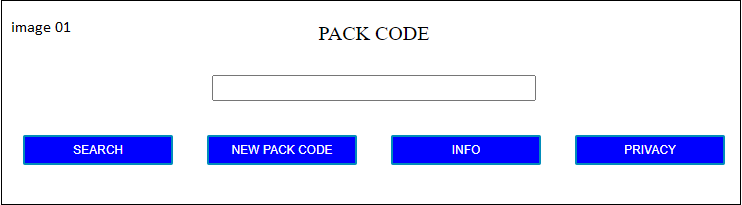
In the search page (image 01) it is possible to type the pack code to search for the movements of the package. Once you have entered the pack code, click on search. The pack code must be twenty alphanumeric characters, the pack code that can be searched for is the one generated by BTraccia.com. If you do not know the pack code, it is not possible to trace the movements of the pack. BTraccia.com does not provide information on lost pack codes. The pack codes are anonymous so you must keep the pack code correctly so as not to lose it. The pack code and all its movements are eliminated three months after the last movement.
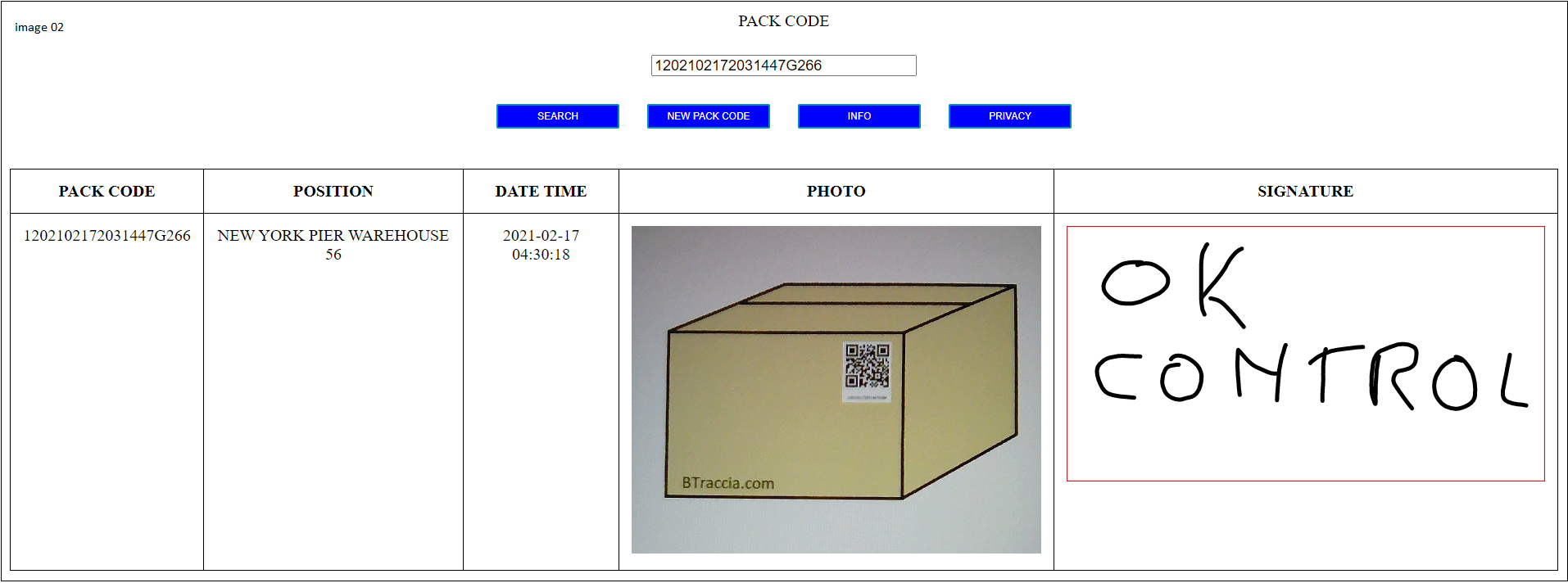
By clicking on new pack code you enter the page for creating the pack code.
By clicking on info you enter this page that describes how to use BTraccia.com.
|
|
Pack code creation page description:
The pack code creation page (image 03)
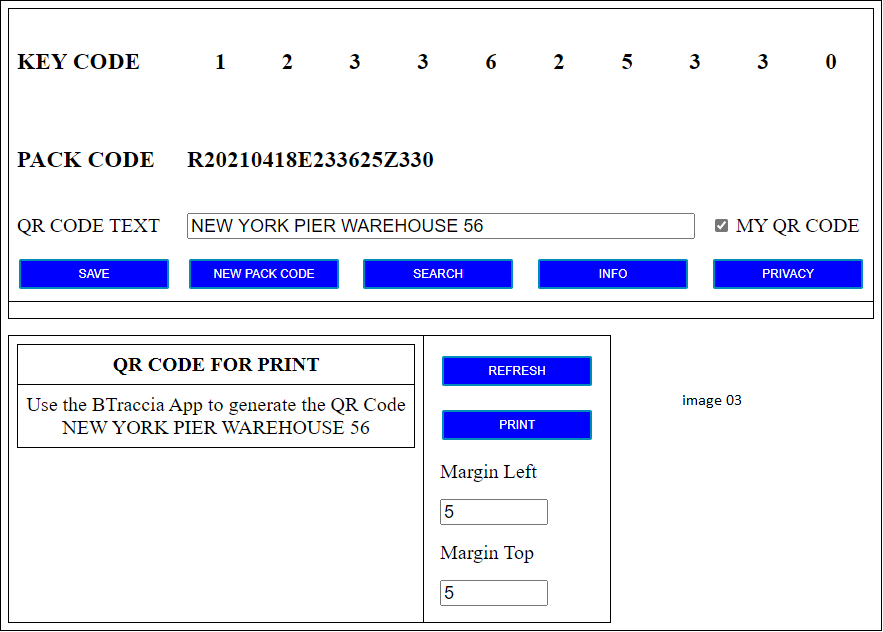
it is divided into two sections, the first containing the Key Code and the second containing the QR Code.
In the first section we have the Key Code, the Pack Code and the QR Code Text. In the second section we have QR Code For Print, below the description of both sections:
-
FIRST SECTION - the Key Code is a service code that is generated automatically, this code is used by the BTraccia App to interact with the web page you are viewing. Below is an example to create a QR Code with free text using the QR Code Text test field.
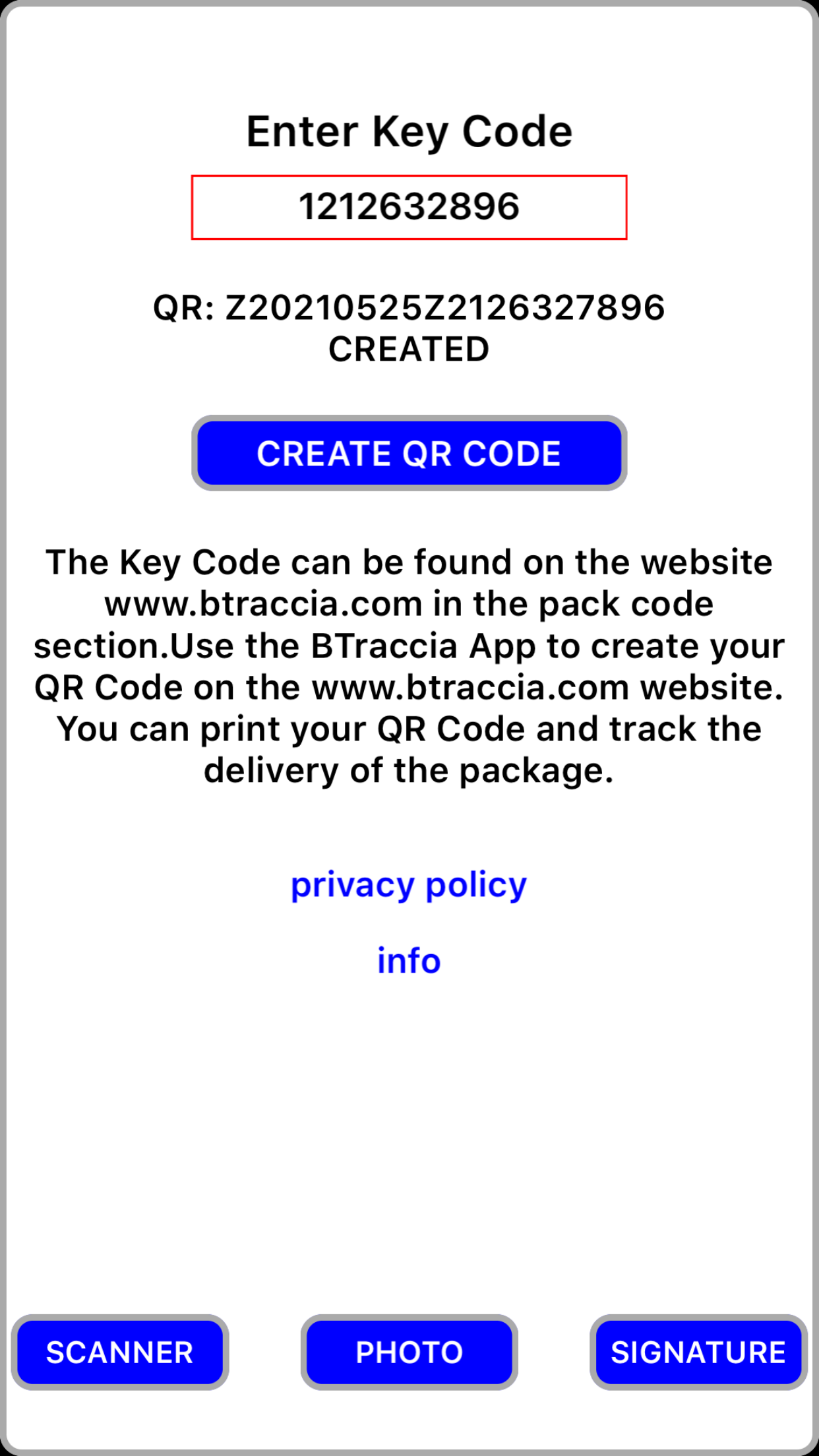
The QR Code Text field allows you to type a free text of fifty characters, once typed in order for the BTraccia App to create the QR Code, check the MY QR Code box and click the SAVE button, the page is updated and the typed text appears in the QR Code For Print section (image 03), in the BTraccia App the Key Code must be entered in the QR Code section (image 04)
| Android | iOS |
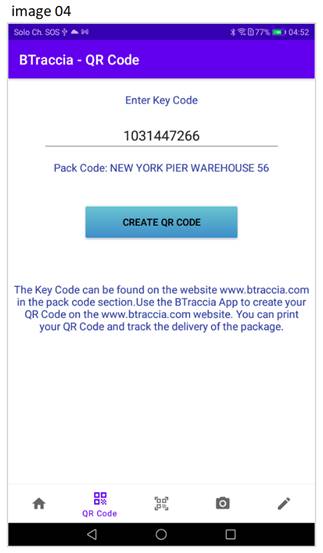 | 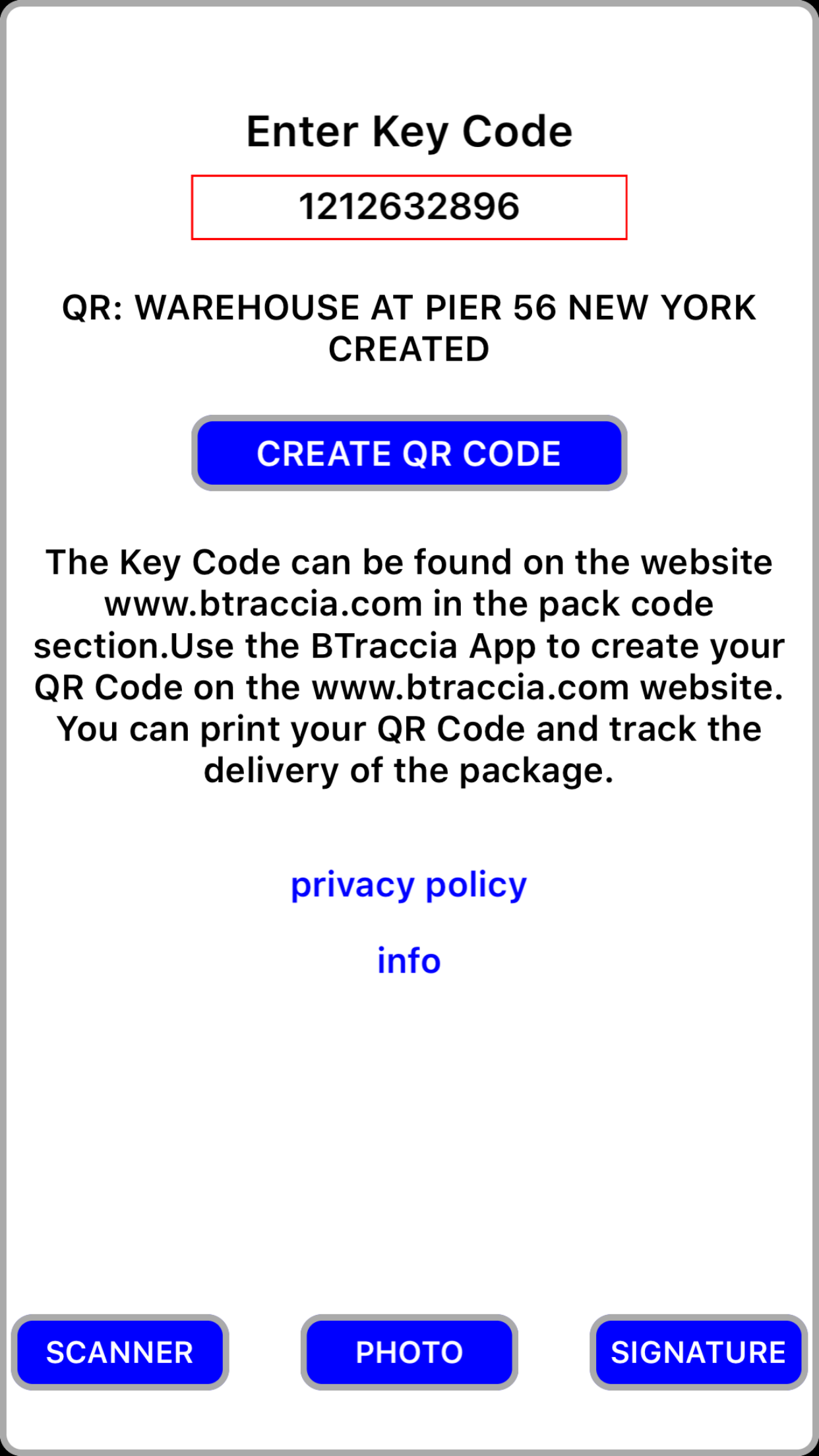 |
once inserted, the CREATE QR CODE button is activated and by clicking on it the QR Code is generated and the web page is updated automatically (image 05).
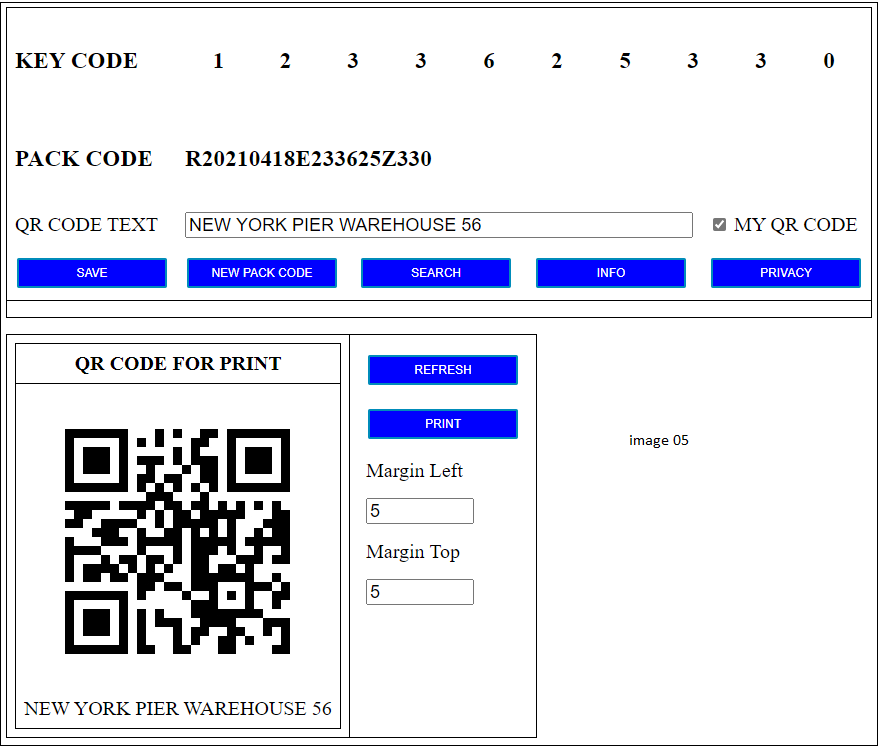
The QR Code we have generated (image 05) can be used to indicate the position of the package.
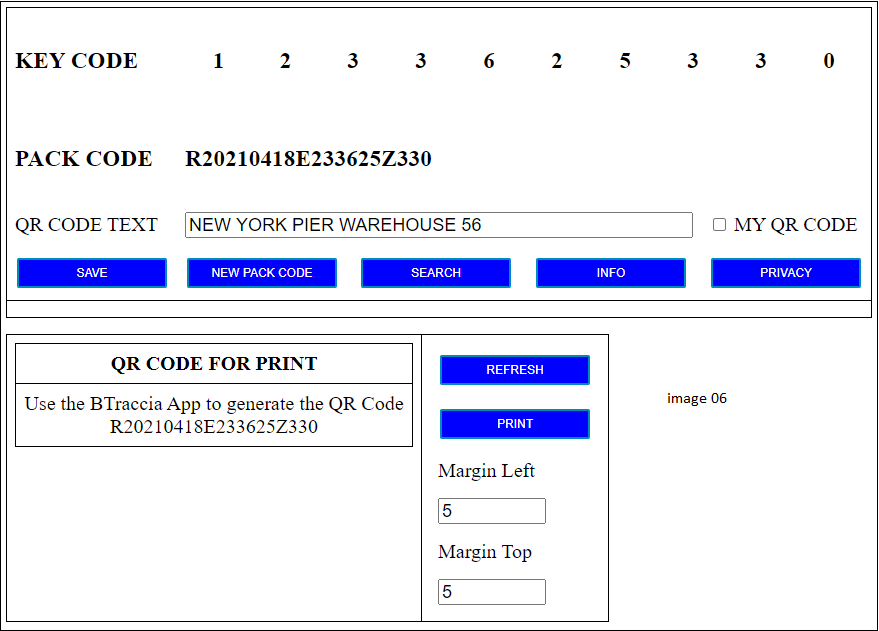
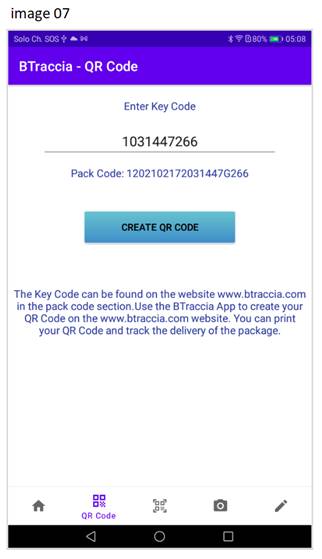
To generate the Pack Code QR Code, uncheck MY QR Code and click on the SAVE button as shown in the images below:
| Android | iOS |
 |  |
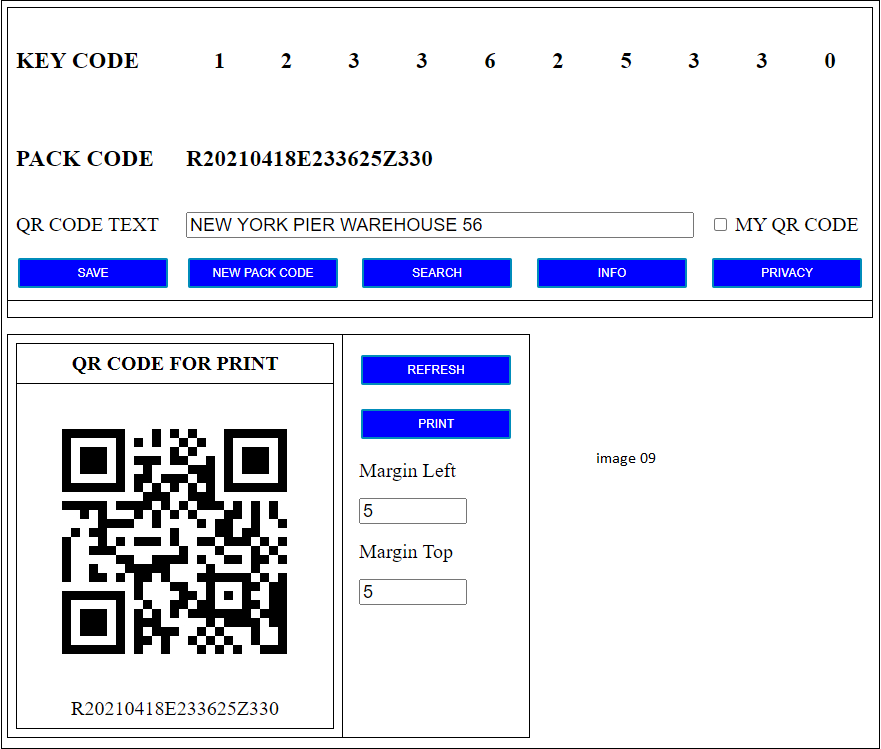
The Key Code has a duration of five hours after which another one is generated, at each new session it is generated (by session we mean: when you enter the web page for the first time, the BTraccia.com server assigns the Code, when the browser is closed the session is closed).
-
SECOND SECTION - QR Code For Print in this section you can print the QR Code on an adhesive label to be applied to the package.
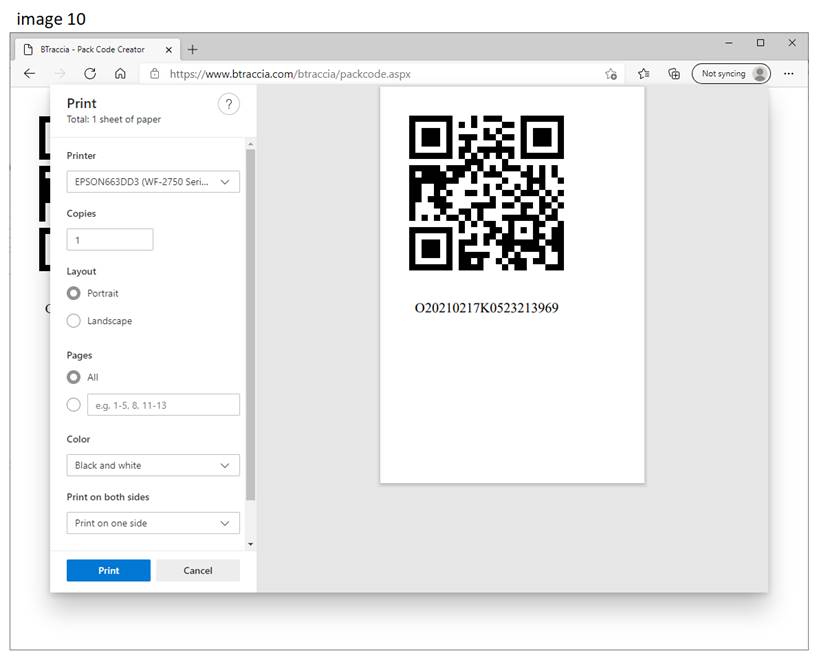
We can also change the left and top margins to center the print on the label, the page size for printing is automatically taken by the browser based on the one set on the printer you want to use. By clicking on the PRINT button, the print preview appears as in the image below (image 10)
HOW TO RECORD A POSITION MOVEMENT
To record a movement proceed as follows:
-
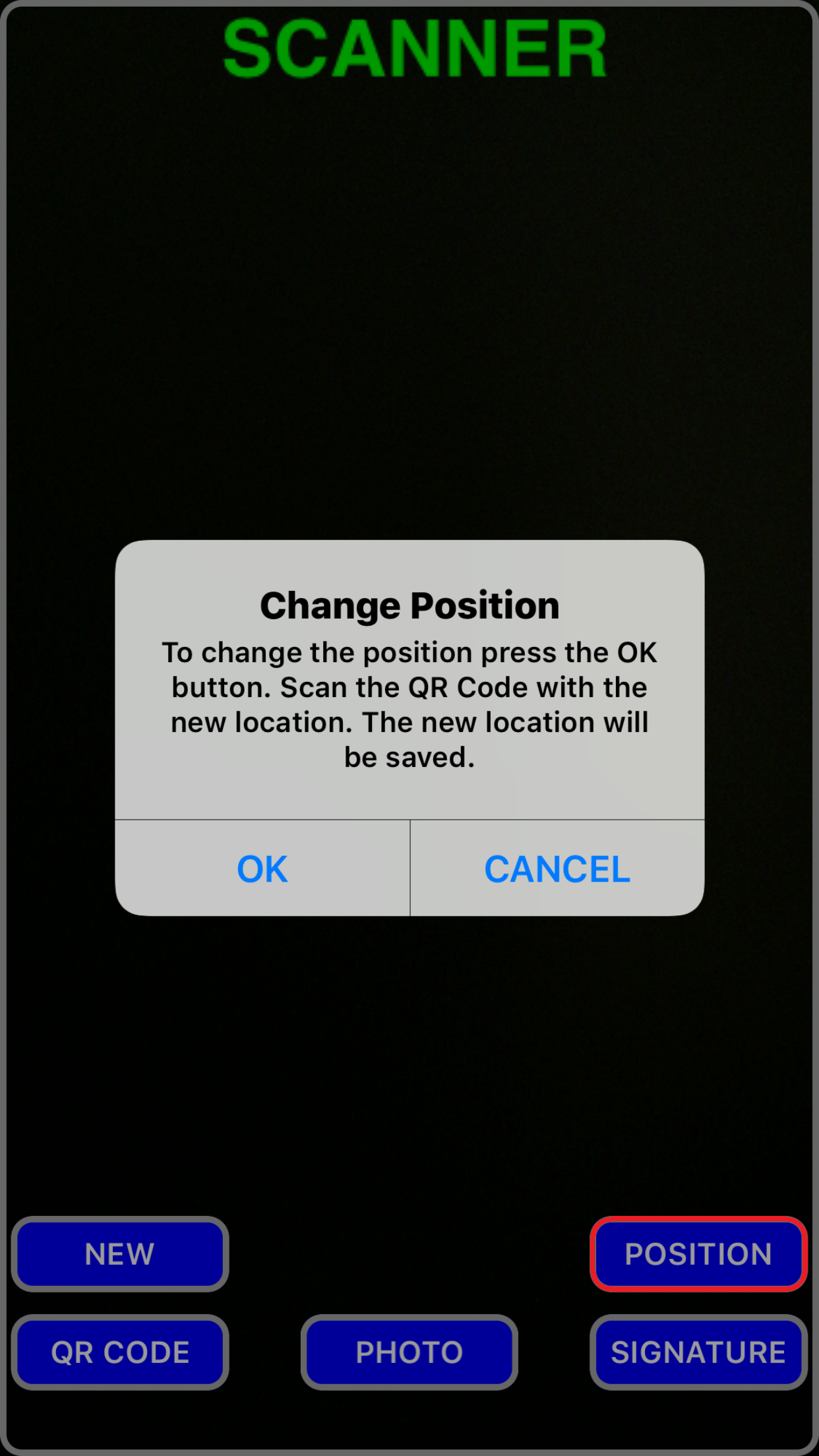
On the BTraccia App go to the Scanner section (image 11-1)
| Android | iOS |
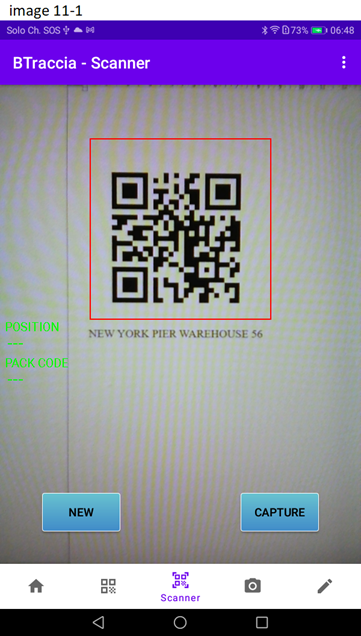 |  |
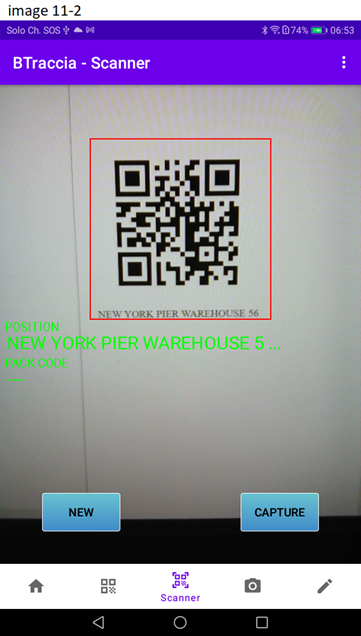
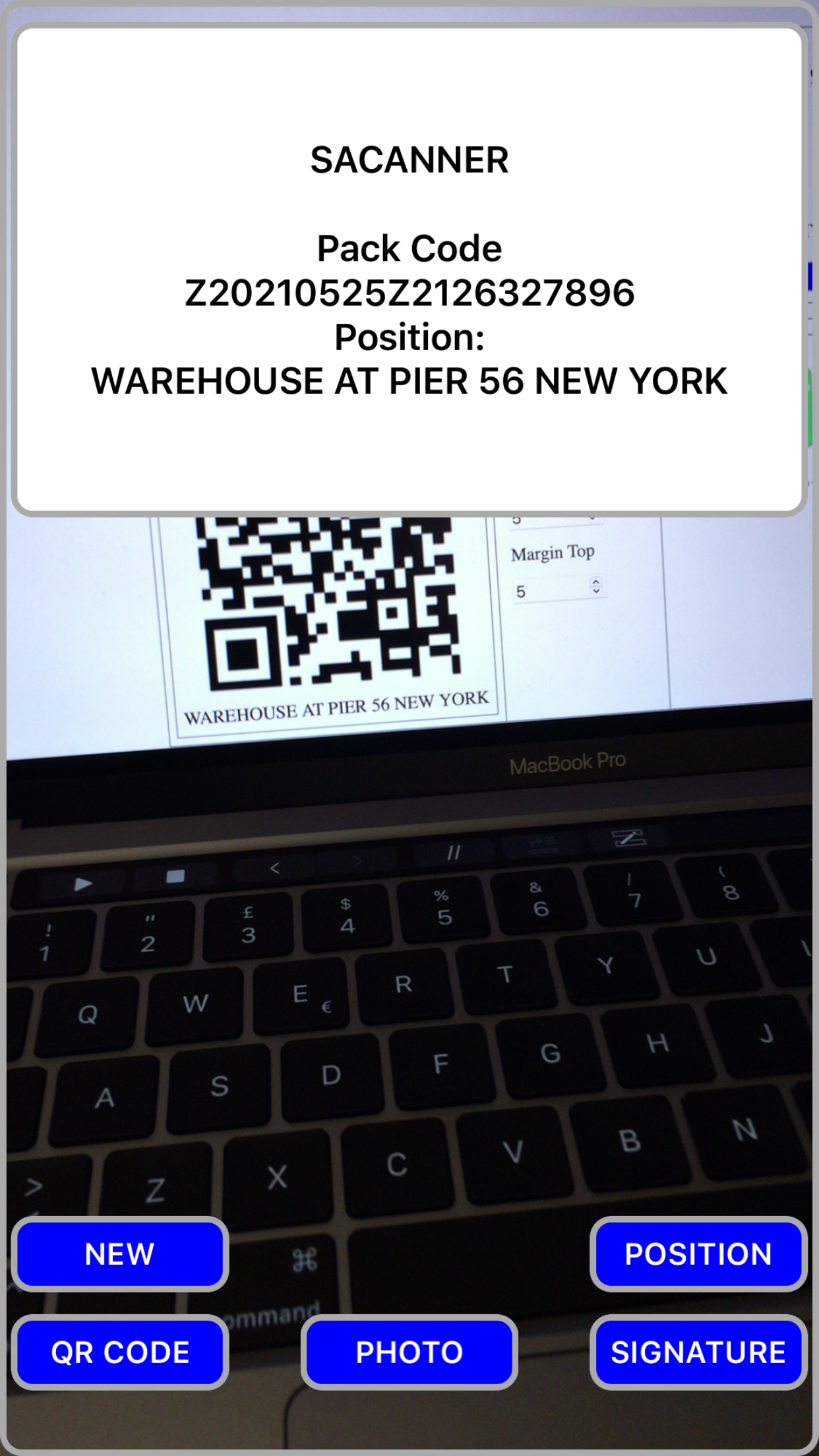
Frame the QR Code of the position in the viewfinder (red rectangle) click on the CAPTURE button (image 11-2)
| Android | iOS |
 |  |
The position can be saved so as not to have to scan it always, this function is convenient if the device is always in the same warehouse.
To save go to the menu and check Save Position (image 11-3)
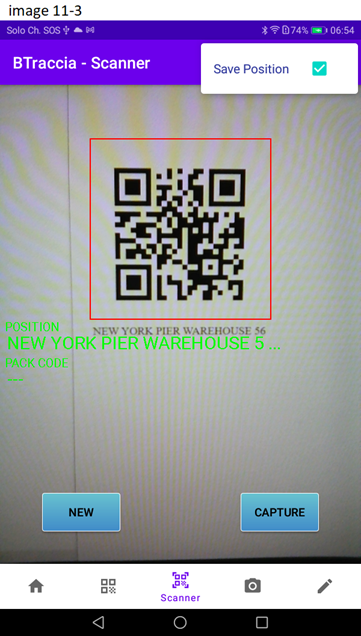
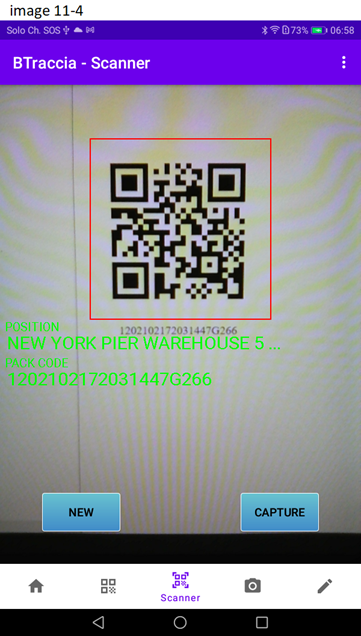
Finally, frame the Pack Code QR Code in the viewfinder and click on the CAPTURE button at this point we are ready to record the movement (image 11-4)
-
If you also want to add a photo of the package to record its integrity, go to the Photo section of the BTraccia App, frame the package in the red rectangle and click on the CAPTURE button (image 12-1).
Always respect the privacy of the recipient, never frame the address (image 12-2).
The QR Code label with the Pack Code on the package must be placed in a position away from the recipient address so as not to be seen when taking a control photo of the package.
-
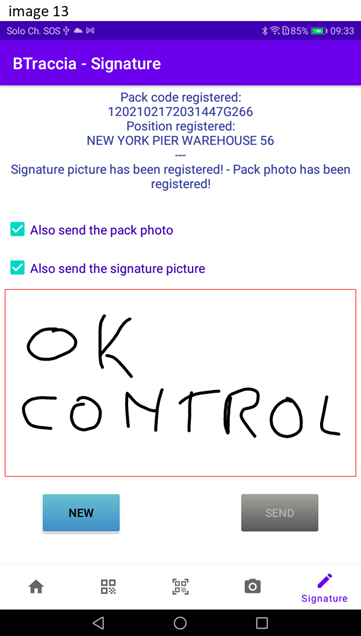
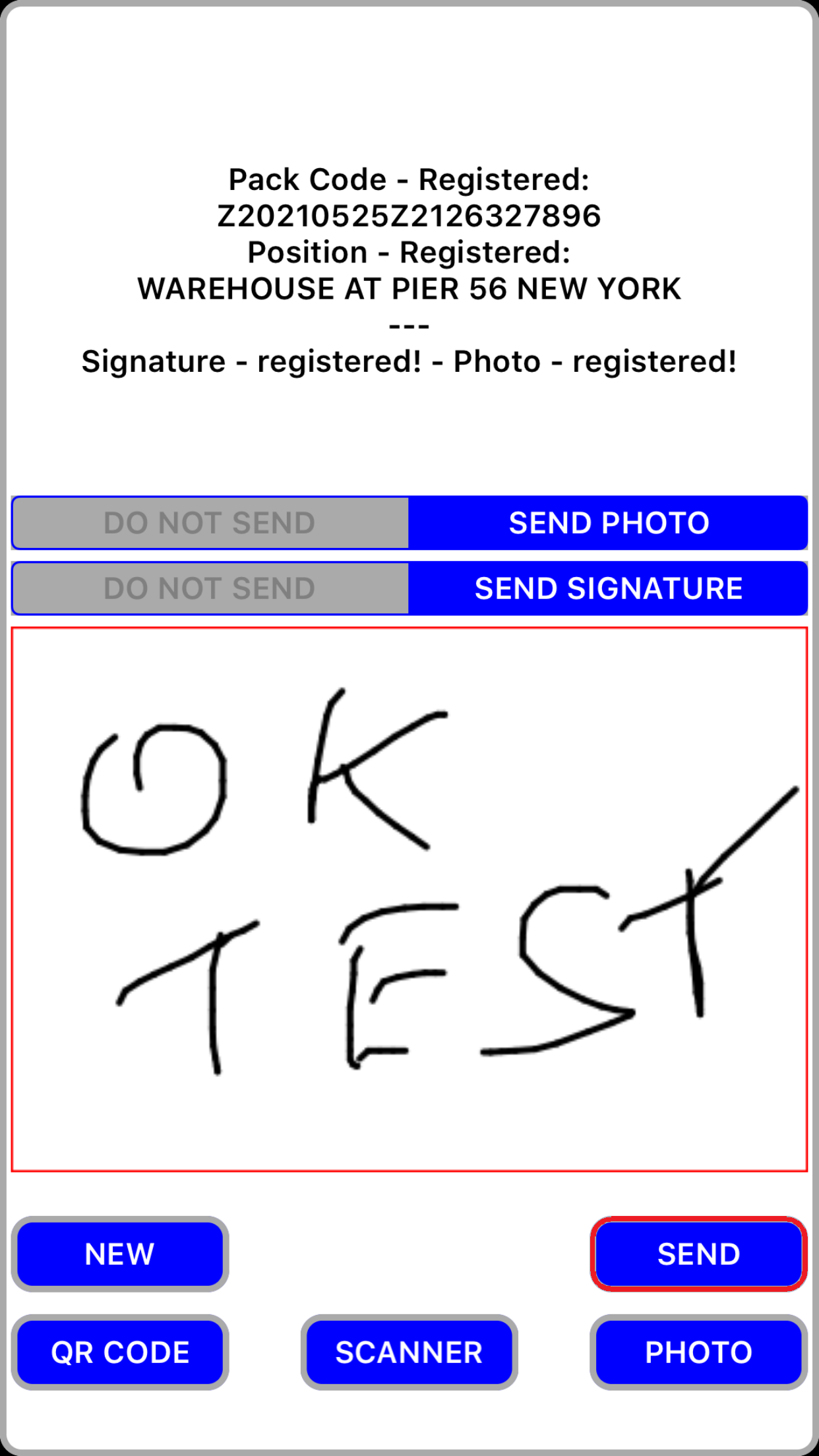
Now we can record our movement, go to the Signature section of the BTraccia App.
If you also want to record the photo, check the box (Also send the pack photo) if you also want to record a signature or a note, write it freehand inside the red rectangle and check the box (Also send the singnature picture).
When ready click the SEND button.
| Android | iOS |
 |  |
|
|
CALIBRATE PHOTO
Adjust the position of the photo viewfinder and scanner, if you are unable to center the image capture within the viewfinder with the initial settings. Use calibrate photo as in the following image.
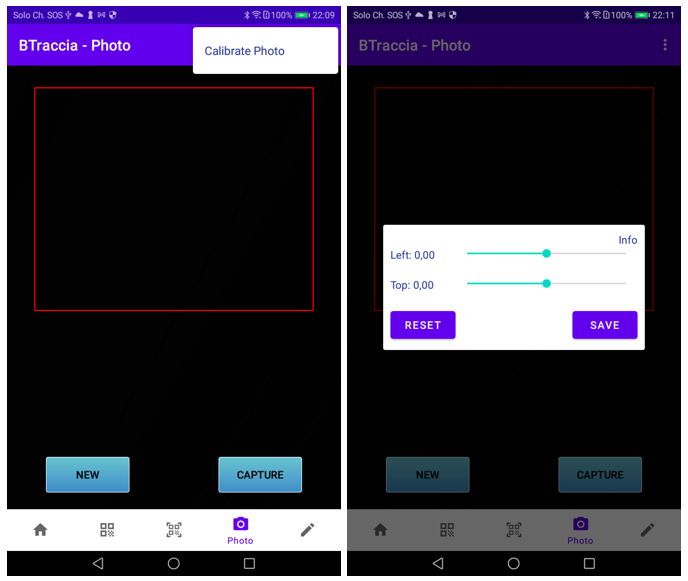
Not all devices have the same resolution, on some you have to act with a targeted setting, calibrating photos helps to center the capture within the viewfinder.
Before starting take a photo capture if it is not centered in the viewfinder act with calibrate photo.
The setting also fixes the scanner's viewfinder.
Calibrate photo by default is zero, the value you can set is -1 to 1.
With the Reset button the value returns to zero, once the Left and Top values have been modified, click on the Save button to make the changes valid.
|
|
© 2026 BTraccia.com
|
|
"Google Play and the Google Play logo are trademarks of Google LLC."
|